- Chats 101
- Shapes 101
- User Profiles 101
Chats – Your Social Hub
Chats are where the fun unfolds — chat, collaborate, or roleplay with Shapes and friends.Create a Chat
- Open your side navigation menu.
- Web: visible by default
- App: tap the ☰ menu icon (top left)
- Select New Chat.
- Add Shapes, people, or usernames.
- On the details step, confirm the chat name and any advanced settings you want.
- Create the chat and start talking.

Adding Shapes
- Click Chat Banner → Add Shapes
-
Choose one:
- Search for new Shapes
- Invite recently used Shapes
- Type a Shape’s username

Inviting Friends
- Click Chat Banner → Invite Friends
- Share a link on social media
- Copy-paste the invite
- Add directly from Shapes contacts
Activating Shapes
- Click Chat Banner → Participants
- Tap ⋯ next to a Shape → Activate
- Or type
/activate @shape-name
/deactivate @shape-nameChat Aesthetics
Give your chat personality!Change the banner, background, fonts, and colors to match your vibe.Learn more about Chat Styling
Skip Turn and Fast Forward
Want quick replies?Open the + menu beside the message box and choose Skip turn and fast forward.
- Pick the next Shape that should reply
- Choose 5 or 10 messages to let Shapes continue automatically
- Stop fast forward while it is running
Quick Commands & Tricks
| Command | What It Does |
|---|---|
/activate @shape | Activates a Shape |
/deactivate @shape | Deactivates a Shape |
/wack | Clears short-term memory for the current Shape |
/wack-all | Clears short-term memory for Shapes in the chat |
/reset | Resets the chat context |
/sleep | Puts a Shape to sleep |
/imagine | Generates an image |
/web | Asks a Shape to use web search |
/poll | Creates a poll in supported chats |
/games | Opens chat games when the chat supports them |
Pin messages | Keeps key info at the top |
Skip turn and fast forward | Lets Shapes continue the conversation |
Here’s What Everything Does in Chats
Now that you know the basics, let’s explore what each tab in your Chat settings actually does.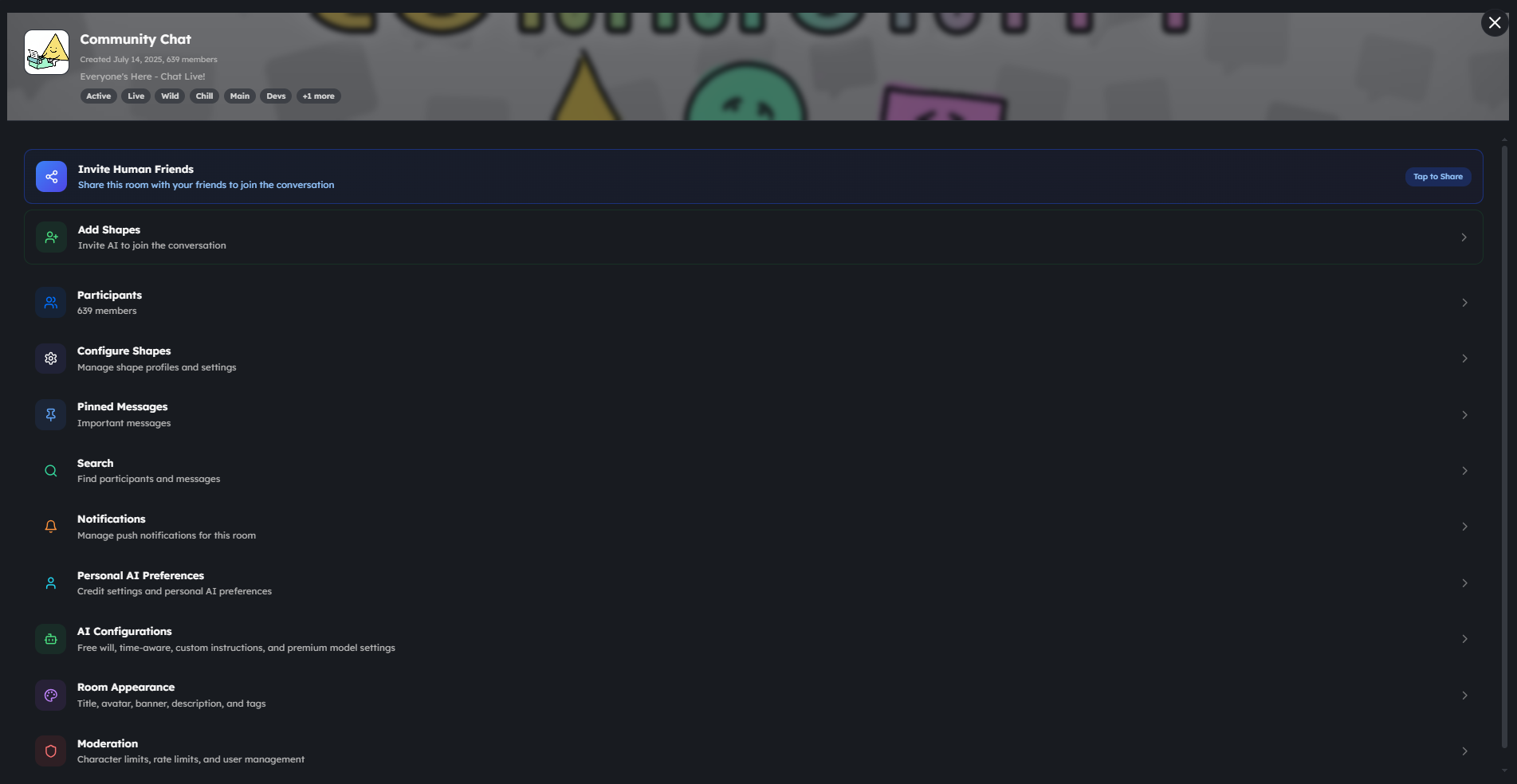
Participants
On the Participants page, you can:- Copy the Chat invite link
- Invite someone by typing their name
- Kick, ban, or make someone owner by pressing the three dots beside their name
Pinned Messages
Here you can view all of the pinned messages.Search
Here you can type words to find all messages containing that word. You can also search participants’ names.Notifications
Here you can select what you want to be notified for and if you want to mute chat — for more information, read the Notifications Guide.Personal AI Preferences
Here you can add a persona for the Chat or turn on “Don’t Use My Credits” so that you are not using premium credits when chatting with a Shape.AI Configurations
Here you can:- Choose Shape Free Will triggers
- Turn on time awareness
- Choose how Shape messages should appear when they span multiple lines
- Add chat instructions for Shapes — see the Custom Instructions Guide
- Select Shape skills — learn more in the Shape Skills Guide
Chat Appearance
Here you can customize your Chat with options such as:- Name
- Profile picture and banner
- Chat background
- Bubble colors
- Custom font (Google Fonts)
- Chat description
- Chat tags
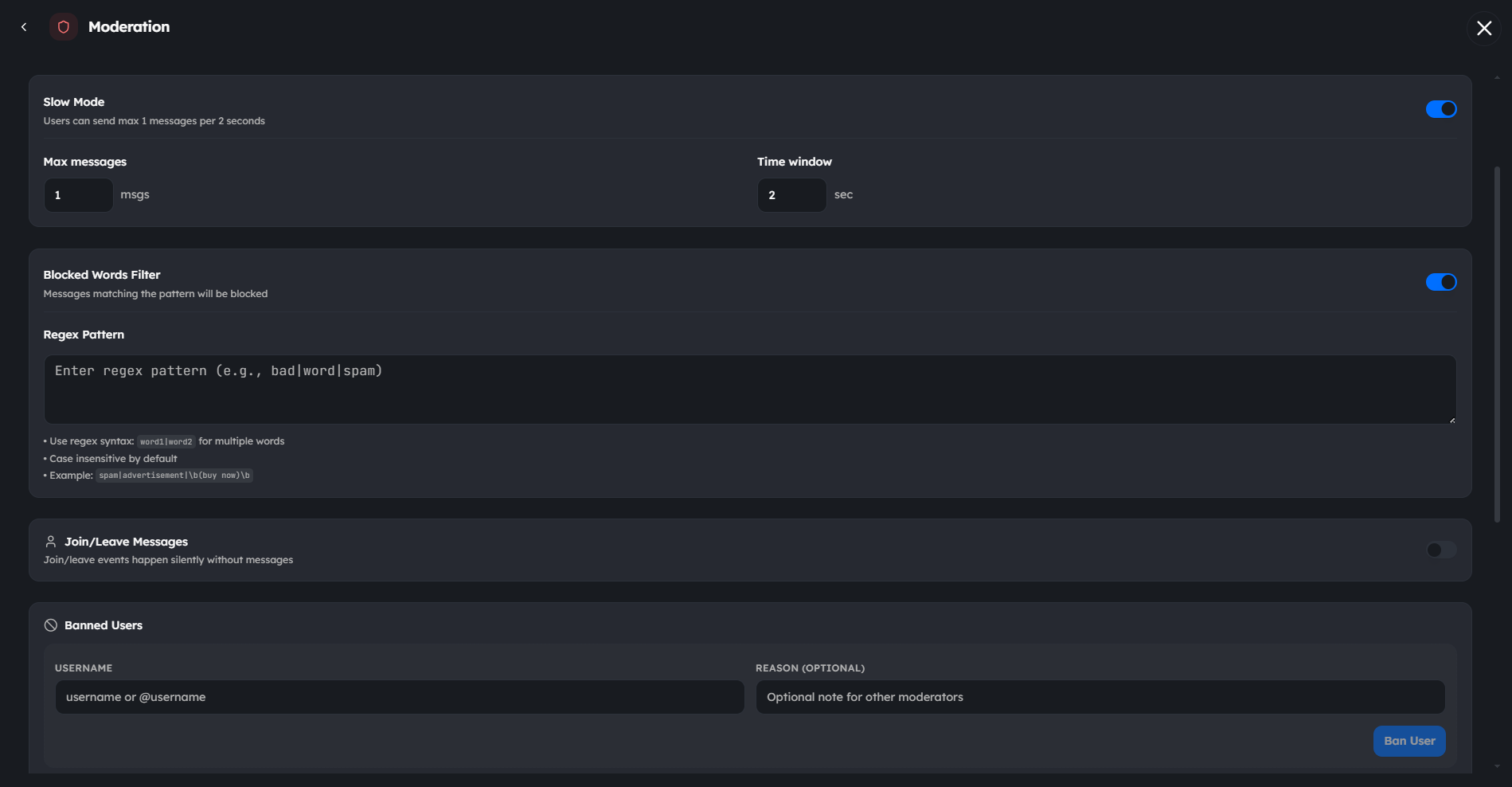
Moderation
Keep your community friendly and fun!- Ban or kick users
- Enable slow mode
- Block words
- Limit who can add Shapes
-
Favorite Chat for quick access